Module 3 Formstorming

Weekly Activity Template

Leah Bronowicki


Project 3


Module 3

Exploring creative code with keybind controls

Activity 1
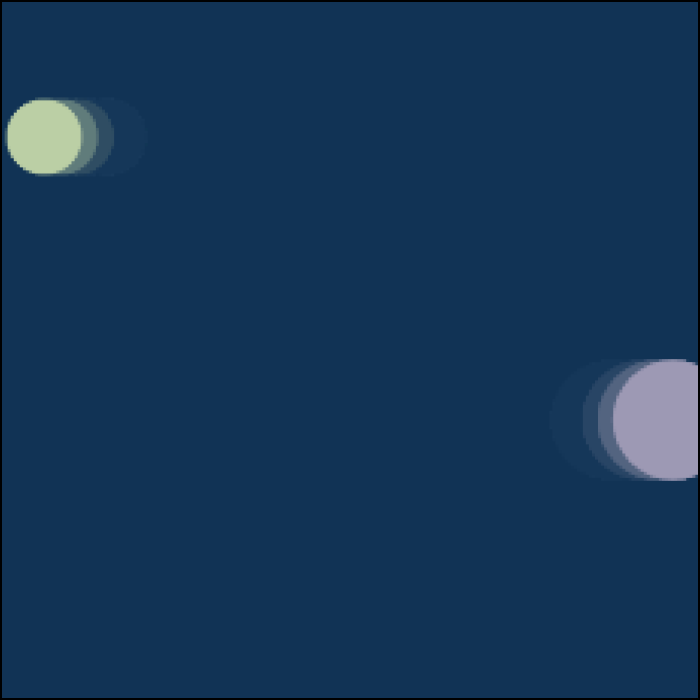
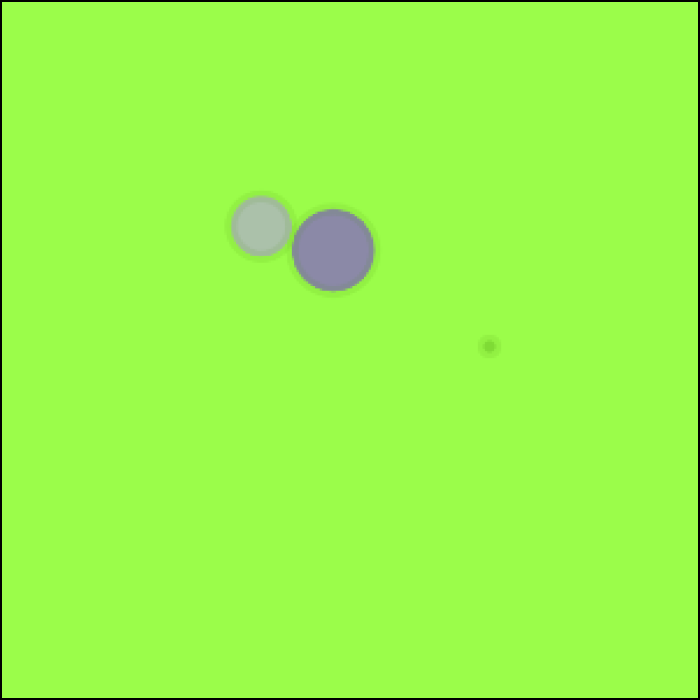
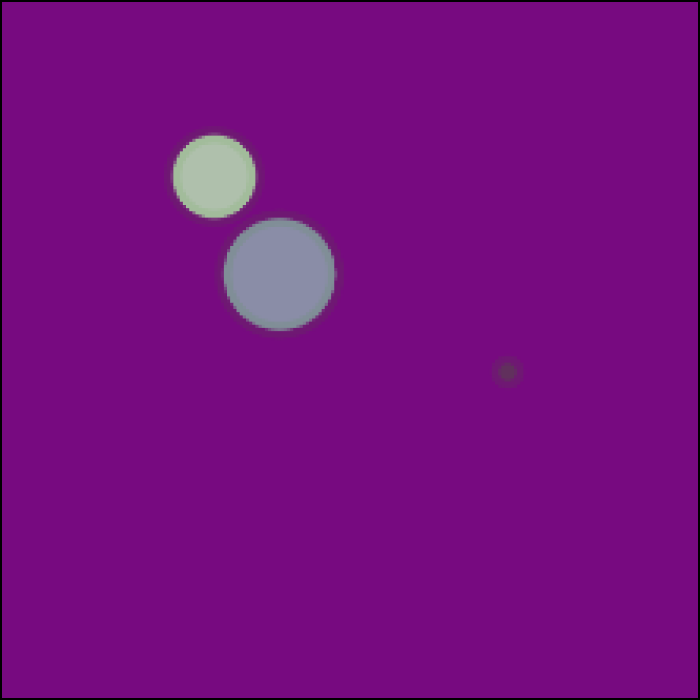
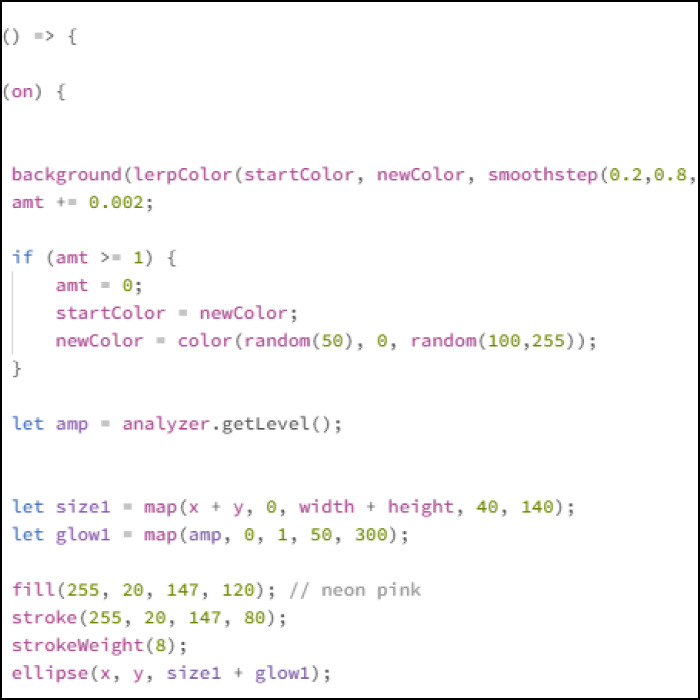
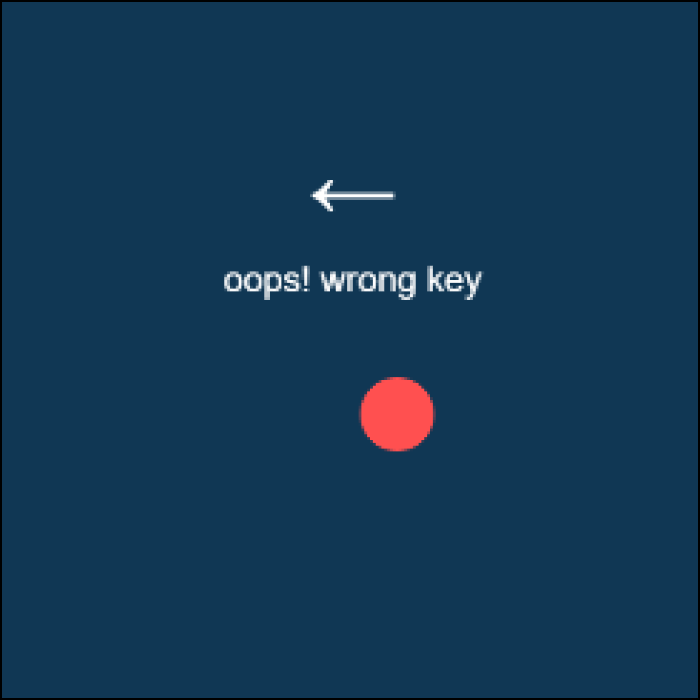
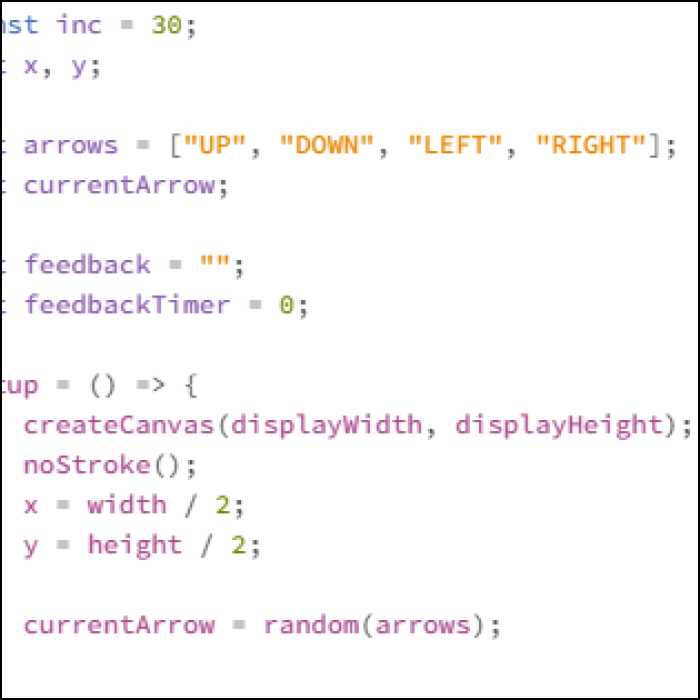
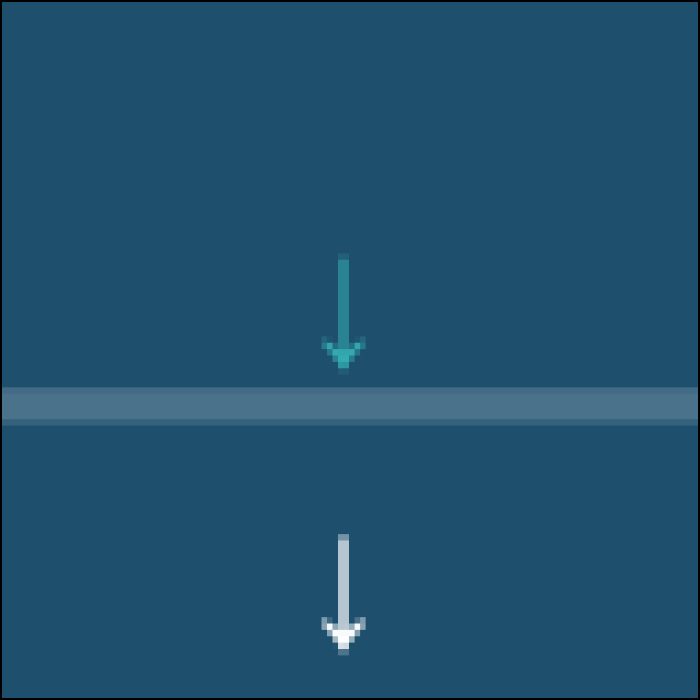
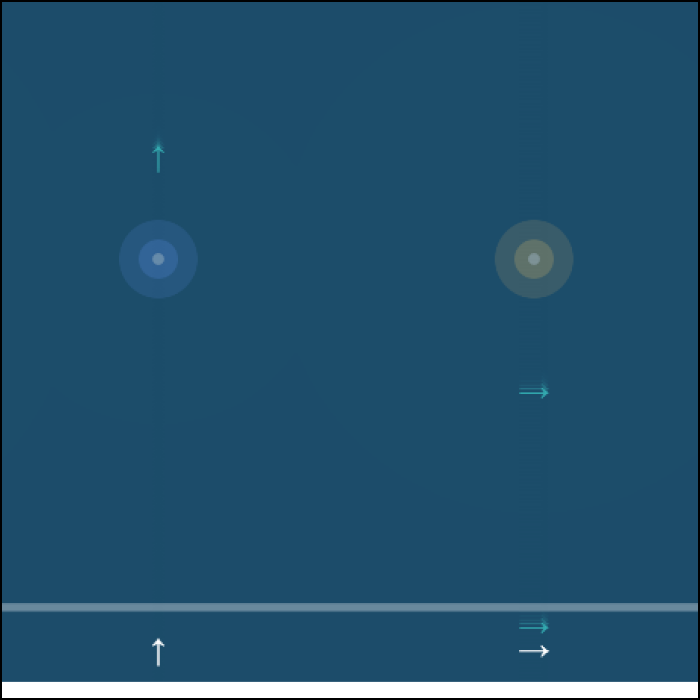
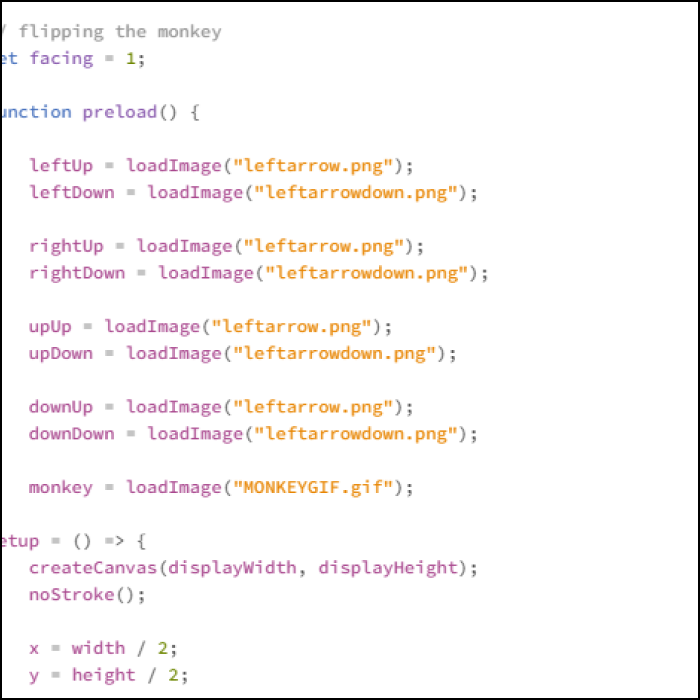
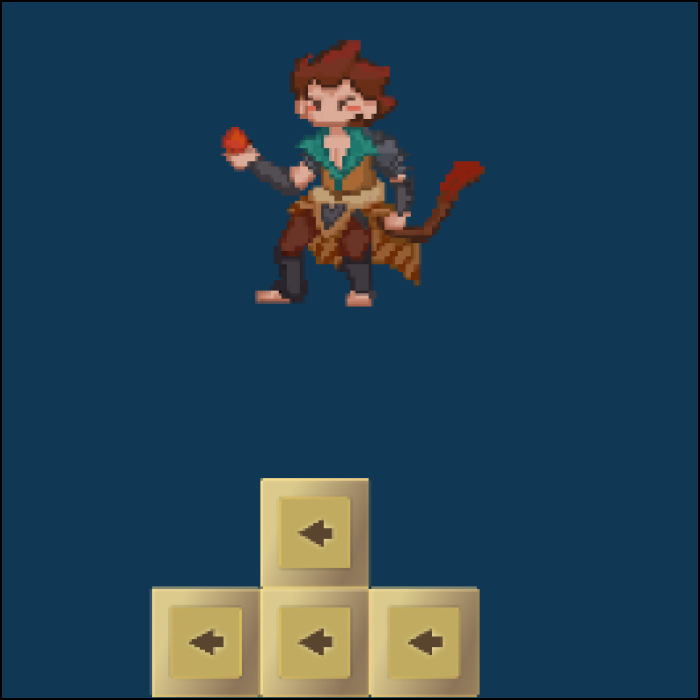
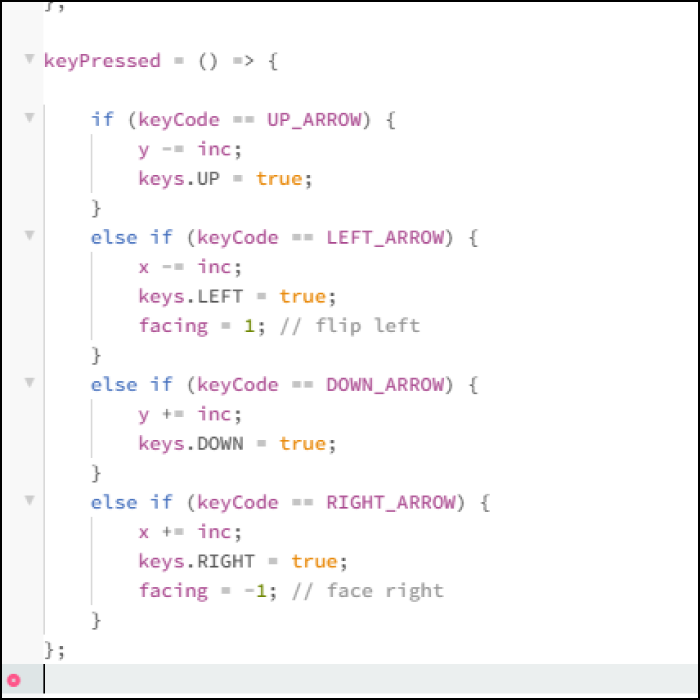
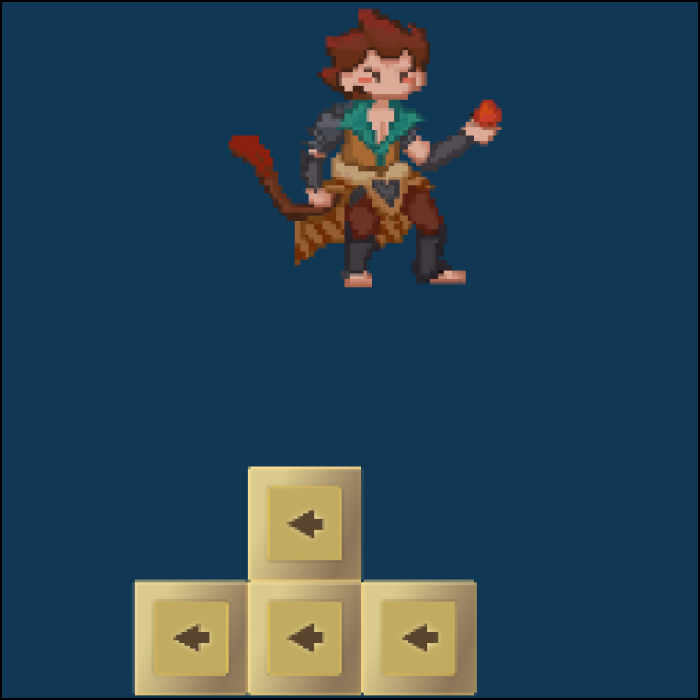
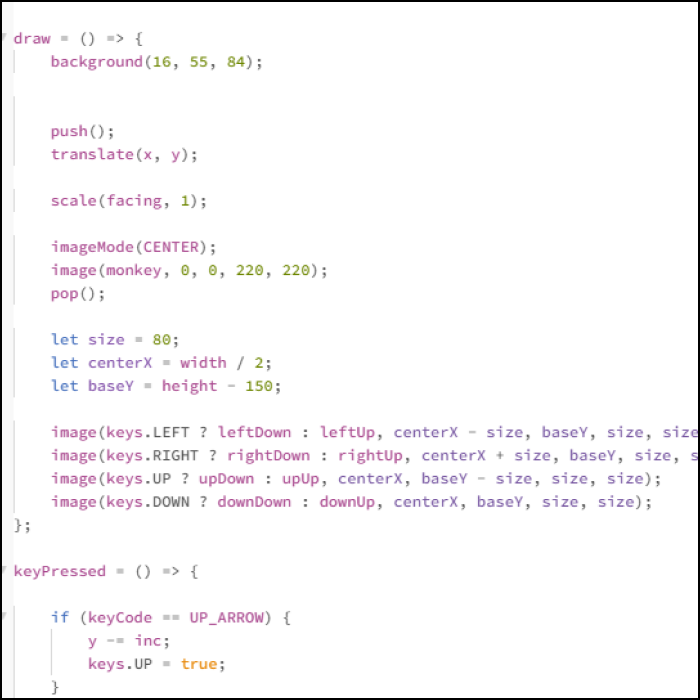
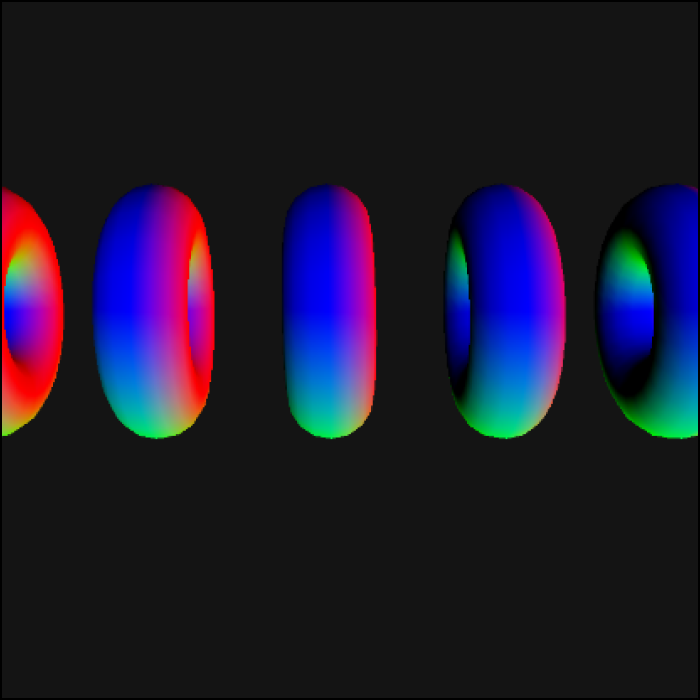
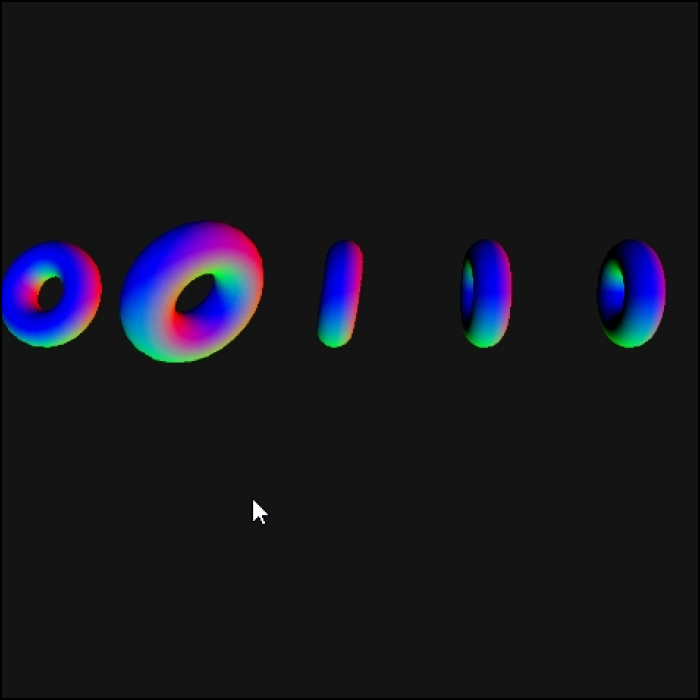
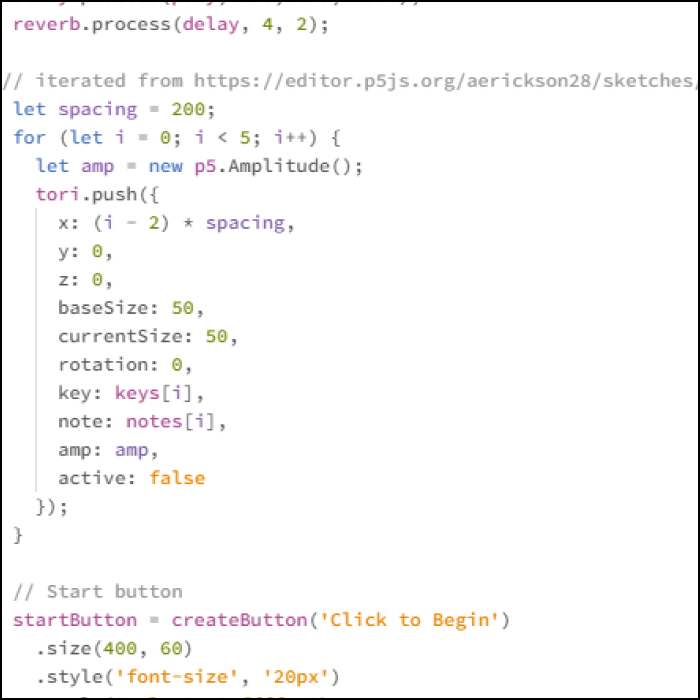
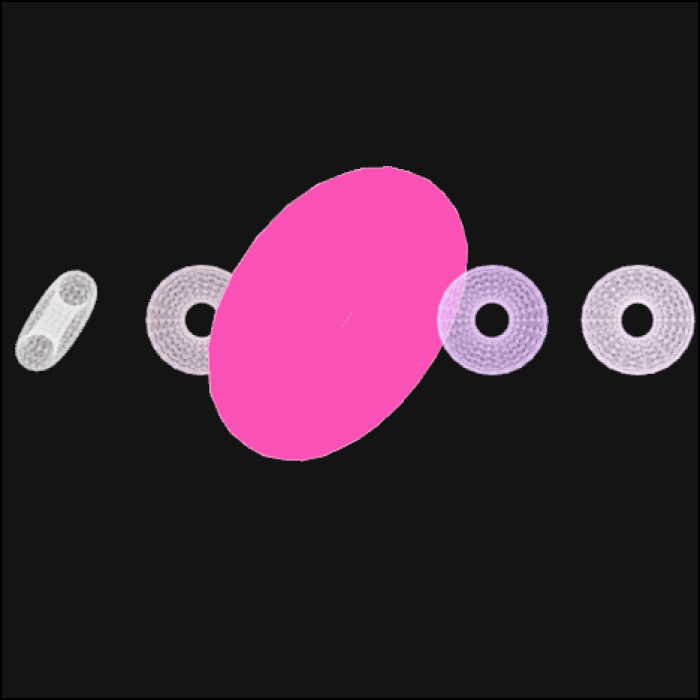
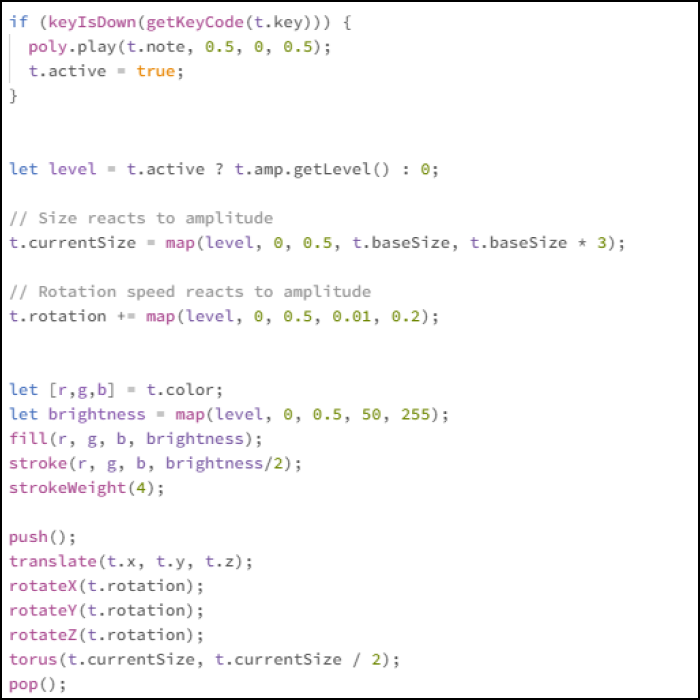
The first tutorial for the activity. Here I played around with using the arrow keys to move the circles. I added a circle moving the opposite direction. played around with the opacity so it showed more motion in the circles This code explored different background colours on the map so depending on where your circles were, the colour would change. Explored this a little more Some code I played around with. Added the polysynth and p5 sound analyzer, some strokes, glow, and size variations. Here you can see that code in action. You can see the sizes changing depending on the volume of the notes. Here I added a directing arrow. When the corresponding button is pressed the colour changes. Colour changed to green when the correct arrow key was pressed. When any other key is pressed, an error message shows and the circle turns red. Here's a snippet of code used to spawn random arrows. Code iterated from https://developer.mozilla.org Inspired by rhythm games like DDR, I had the spawning arrow fall down in lanes and when the correct arrow is hit, the note plays. Iterated from https://youtu.be/S1jMxo4QI44 I added the sound reactive circles for some visuals when the song is being played. Moving on I wanted to recreate the arrow keys to look closer to a keyboard to bridge the gap between digital and physical interface. Designed this key to have a pressed down look in figma I added press down and press up functions and attached them to the images I made so users can see the reactions. I added a little pixelated character I drew in a personal project and had him move across the screen with the keys. I wanted to change the direction in which he faces depending on the direction he is moving to make it more video game like. Here's him changing directions and although I could not capture it, the keys would visually react as well, creating a more immersive interaction. Here is the code snippet of the key ups and downs and the character. Here is the 3d model code from the tutorials, I was playing around with the size and movement of the tori. Played around with spacing and had each tori react to corresponding keys, playing different notes each. Code snippet for the tori iterated from https://editor.p5js.org/aerickson28/sketches I played around with the look of the tori. A snippet of the code of how the individual tori react when the corresponding keys are pressed. Played around with rotation speed and size.

Activity 2
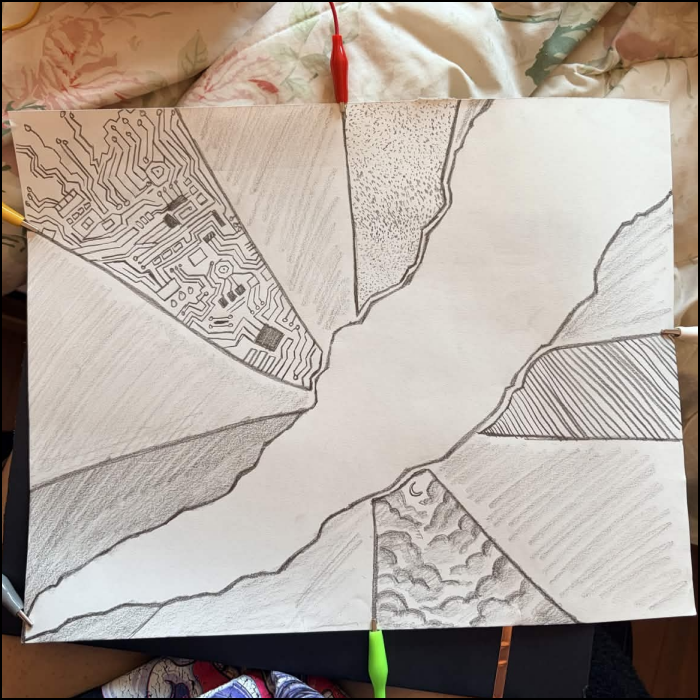
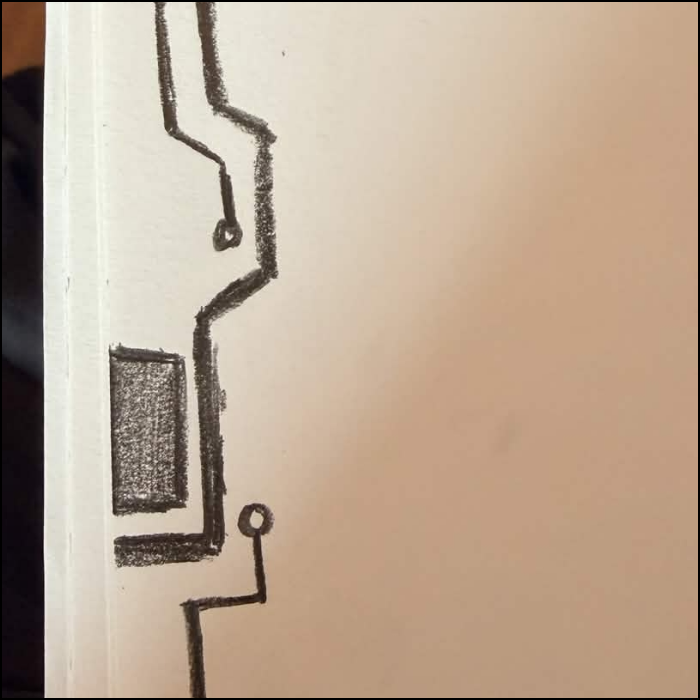
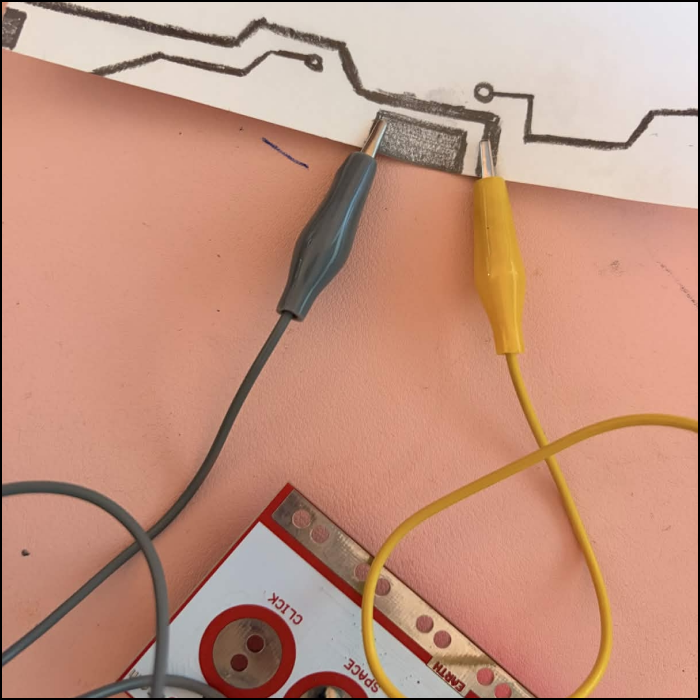
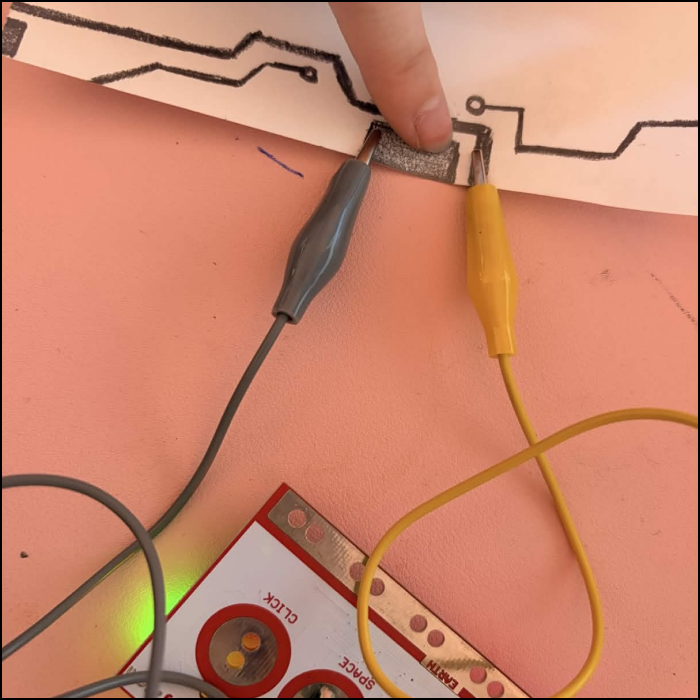
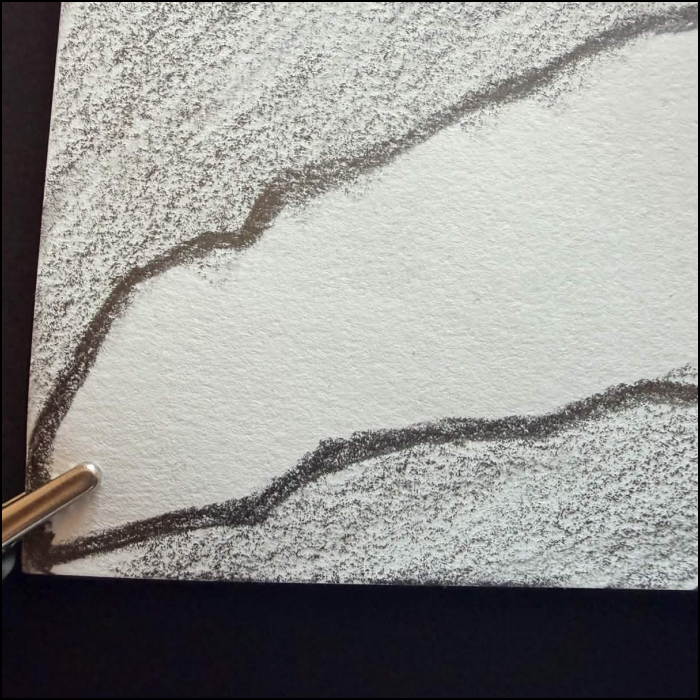
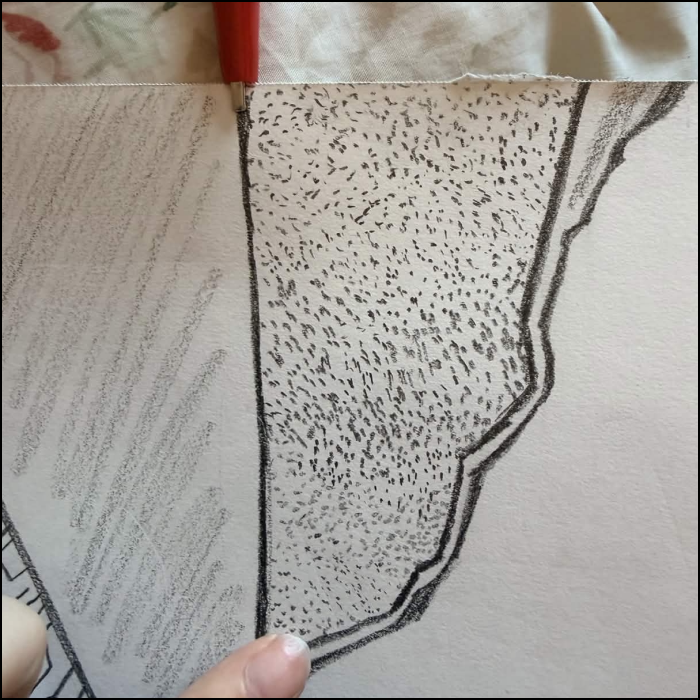
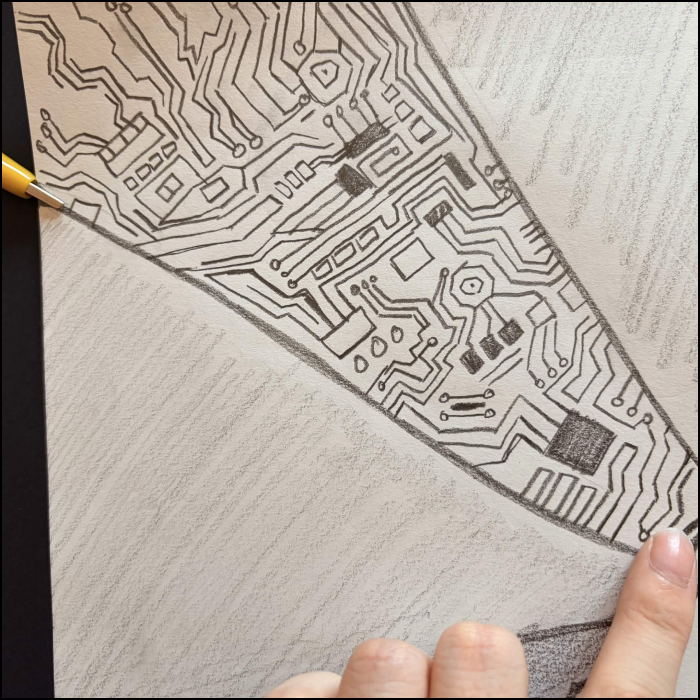
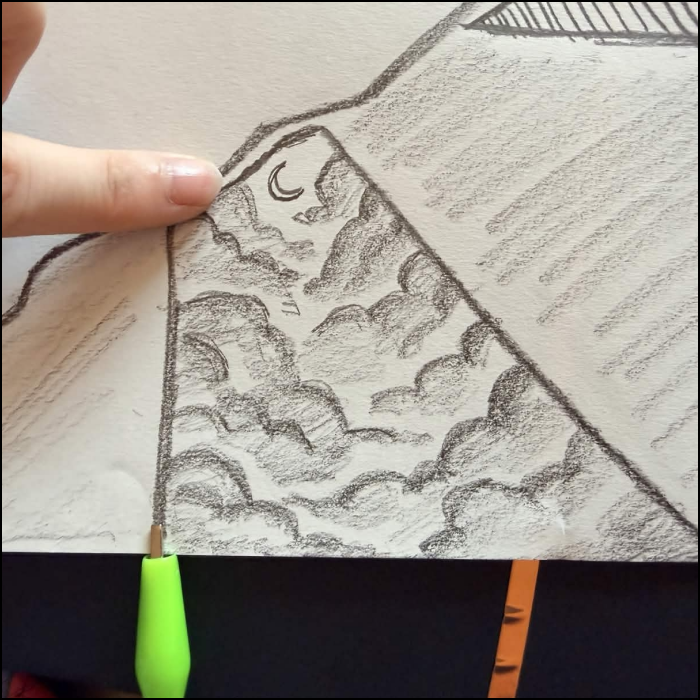
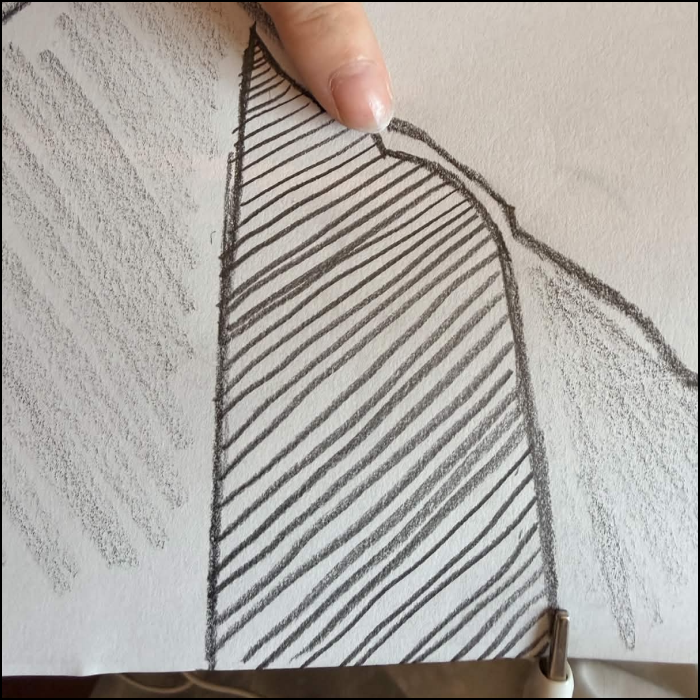
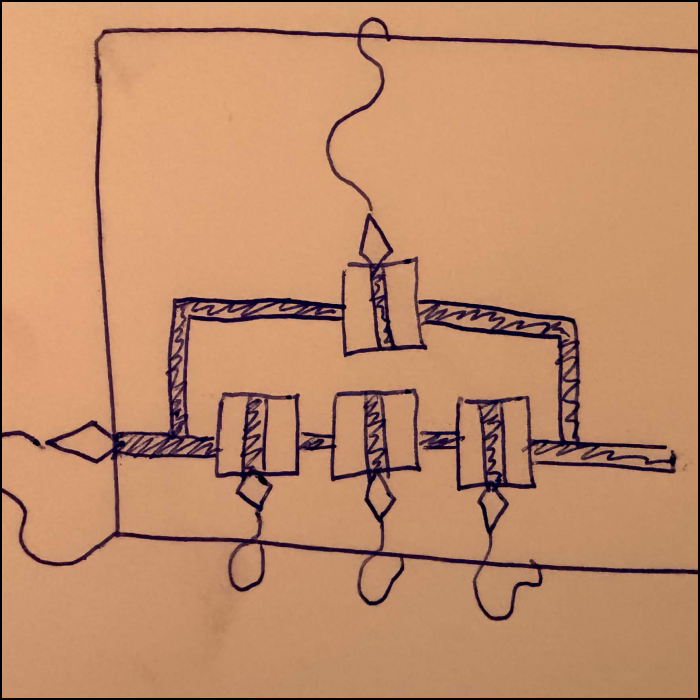
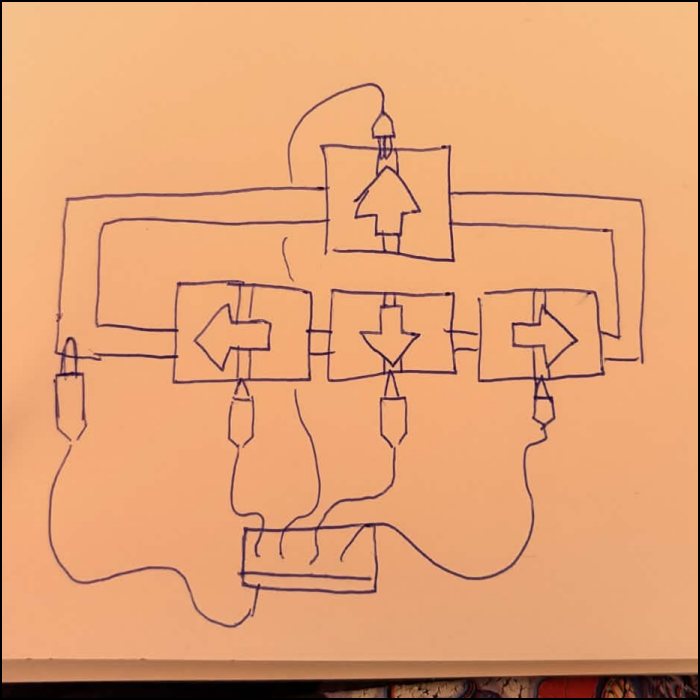
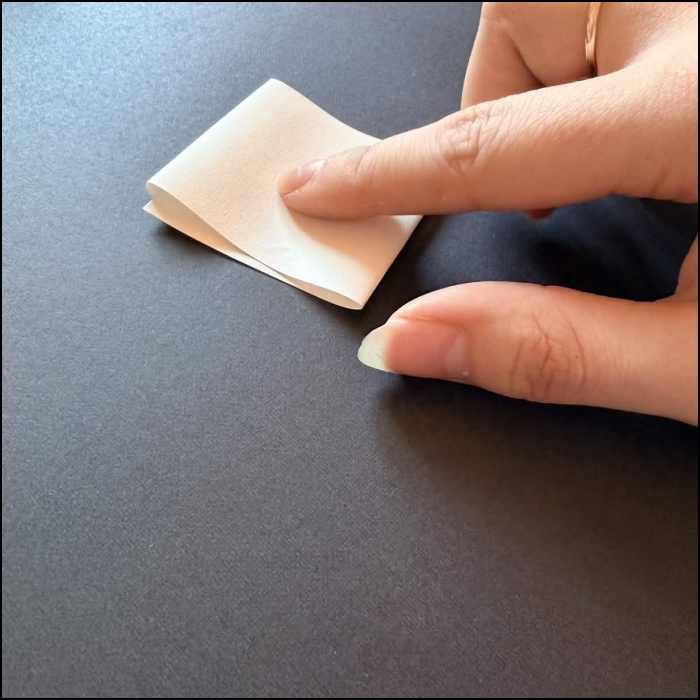
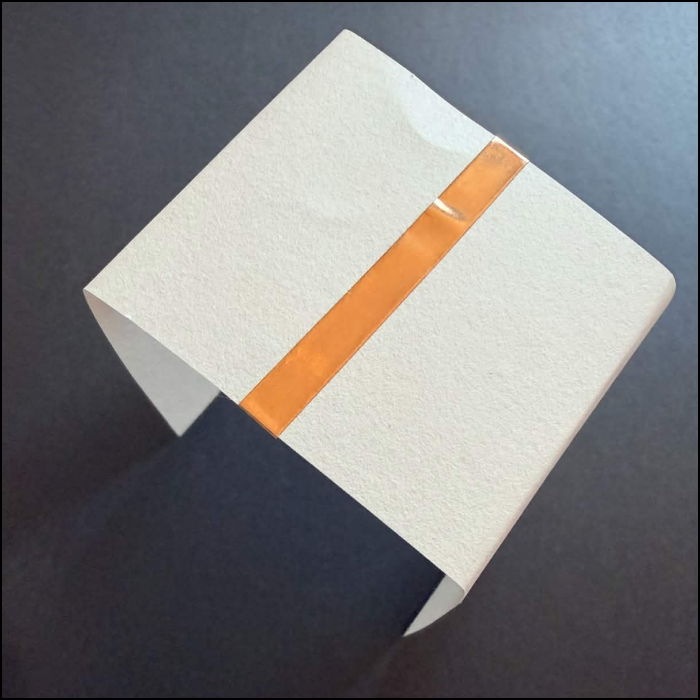
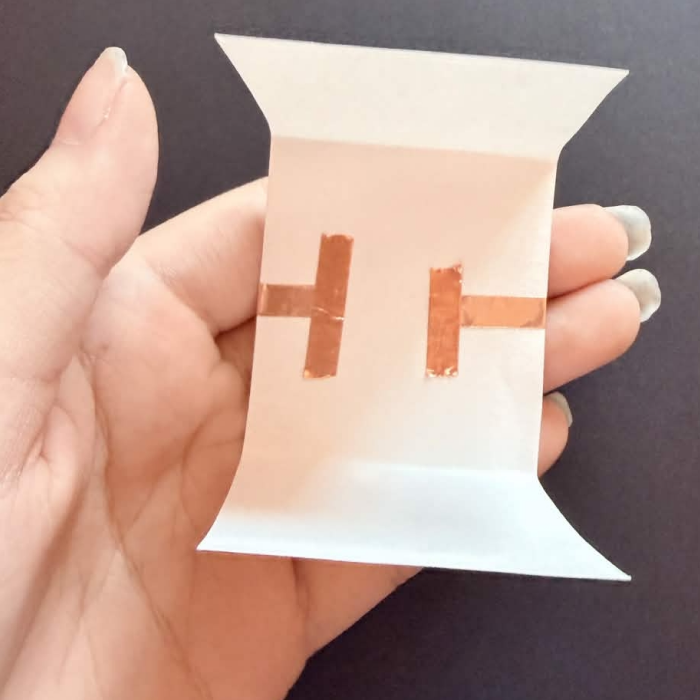
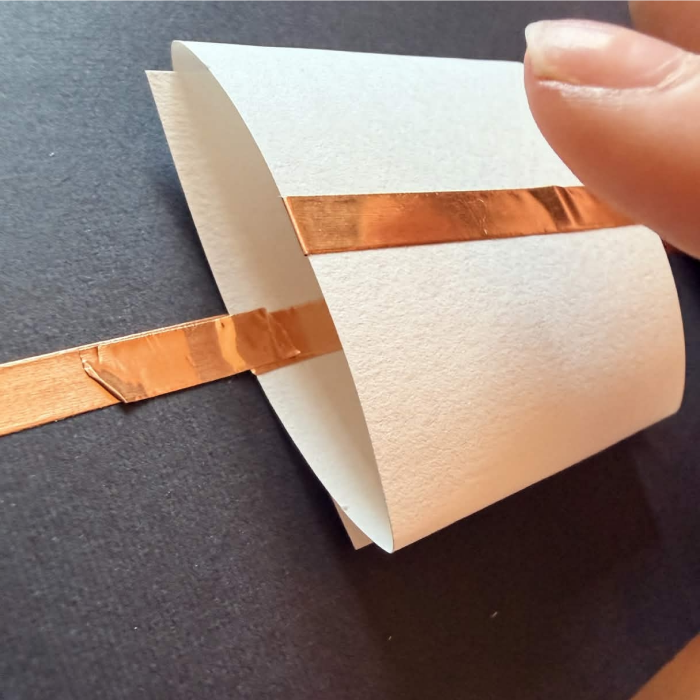
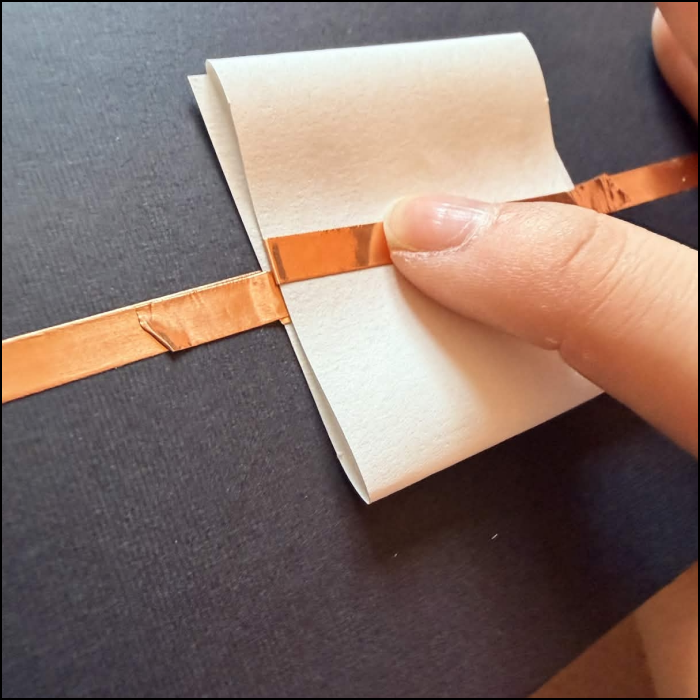
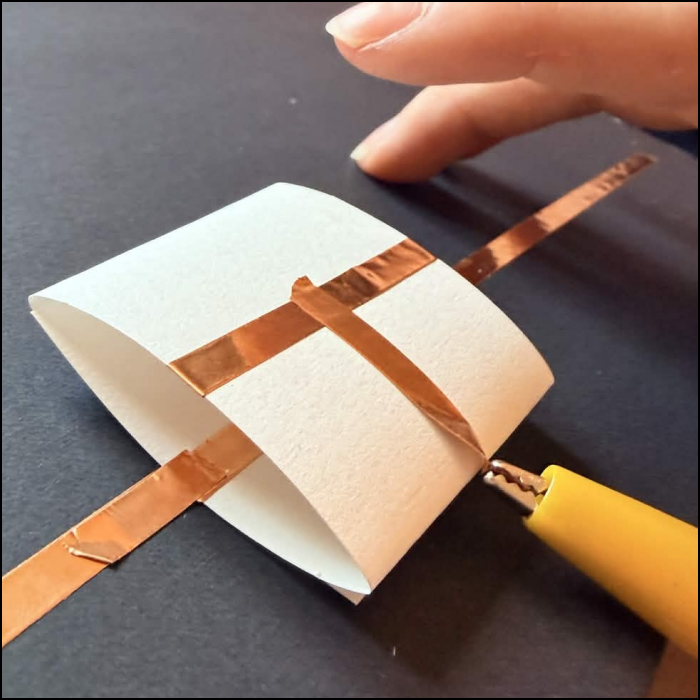
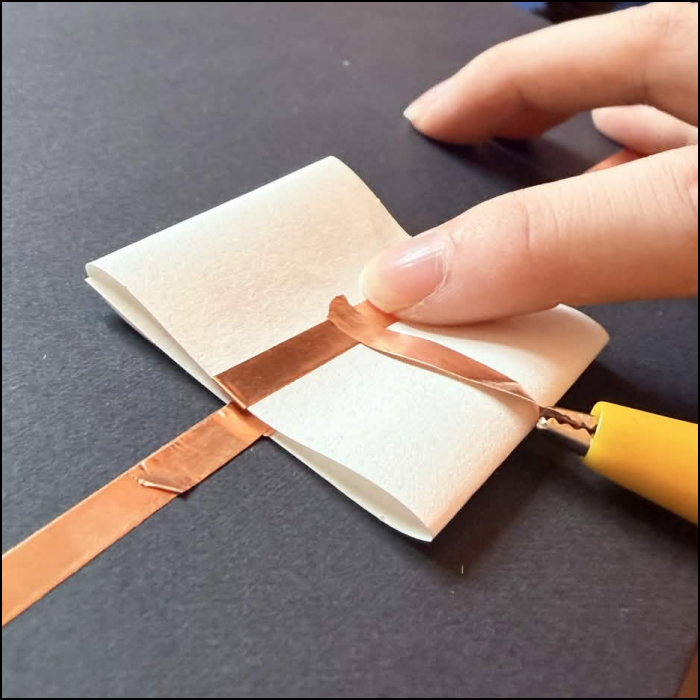
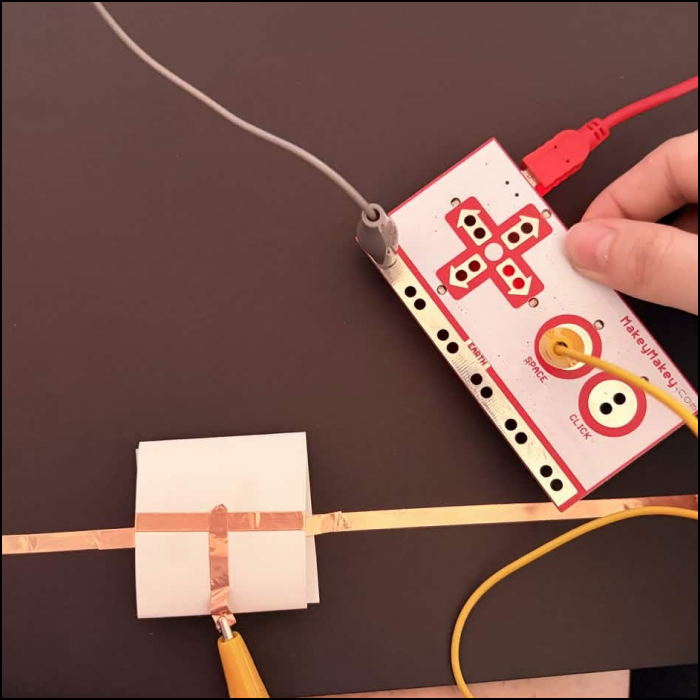
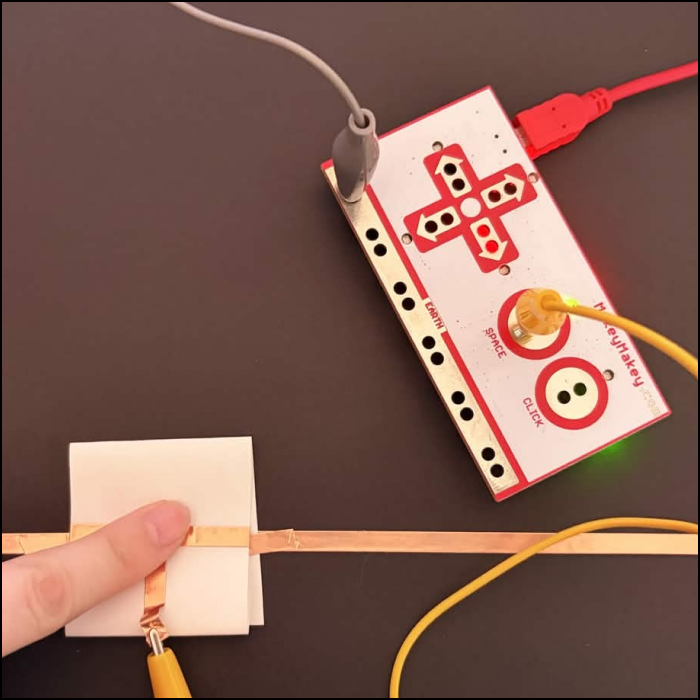
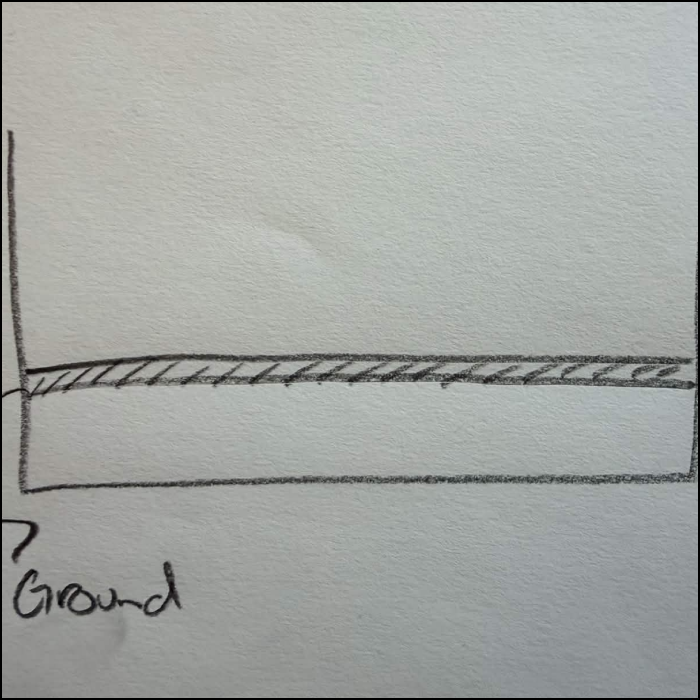
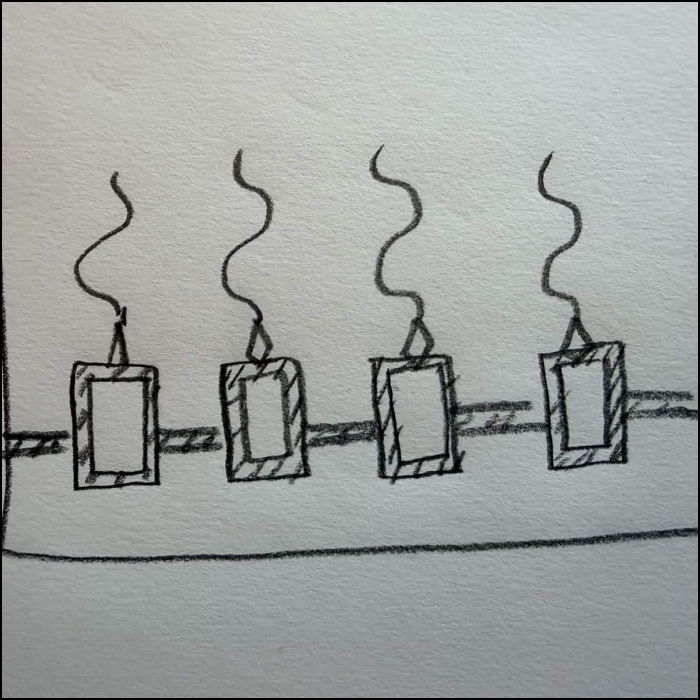
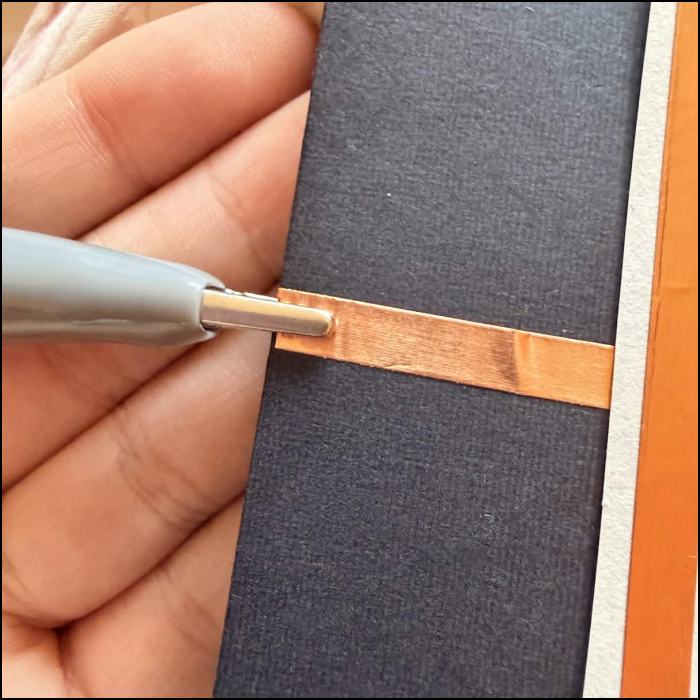
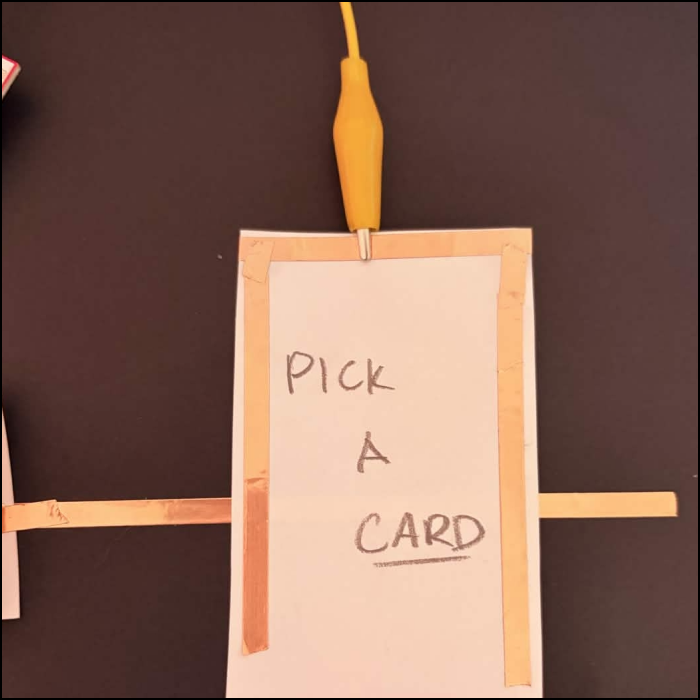
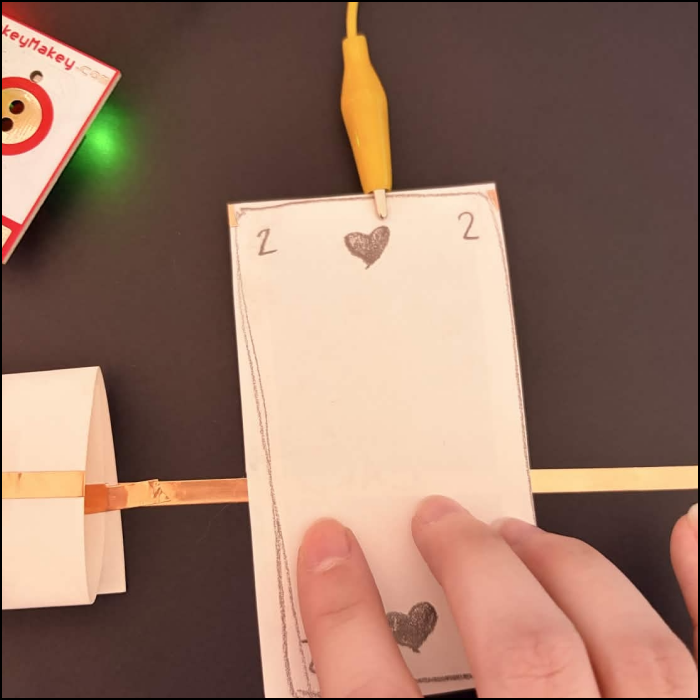
Looking at the next tutorials for the makey makey controllers, I wanted to test out my pencils to see how well they worked. I created some motherboard inspired line art and connected the ground and one of the buttons. Here's the first success! I then created a poster with the pencil. Creating different sections with different kinds of textures. I had the ground connected to this central section. Each section was connected by there outlines that I drew right beside the ground lines so when they were connected by my finger, it would trigger the button. Had a hardware design here for hard varying textures. I drew soft clouds here for a soft texture. I had just straight lines for a rippling texture. These textures could be connected to reactions on p5 that would simulate actually feeling the real texture. Next I wanted to map out a diagram for a switch controller. In iteration, I figured out a clearer way to execute it, I needed a solid idea so I wouldn't waste the copper tape. Here was a prototype of the switch, folding a piece of paper in a way two parts of it could be pressed together. The first side of the copper tape that would be connected to the button The underneath side I had to place the tape in opposite directions to have more surface to cover Here I connected the ground tape to the bottom side of the switch. Testing out the press down and making sure I lined up the tape correctly Connected the top piece to the button Testing the tape to see if the clamp will rip it or not Here's the whole thing together, I only made one switch as to not waste any tape. And pressing the switch down and the light shows that it is working. This system would be used as a controller for my little pixel characters movements. Next was a sketch for my card flipping system Lined the ground tape across the board and had separate cards facing up connected to buttons. Heres where the ground was connected to the board Heres the card facing up, the outline of copper tape will flip to make contact with the ground Here's the system working as the tape makes contact after flipping the card over.

Project 3


Final Project 3 Design

Arcana Card Game simulation

×

Powered by w3.css